
Google Consent Mode Troubleshooting
Google Consent Mode Troubleshooting with Mandatly:
The purpose of this guide is to assist you in troubleshooting any issues encountered during the implementation of GCM v2 with Mandatly CMP.
Check if GCM is configured properly:
First, follow the below steps to verify that GCM is configured correctly for your website:
- Login to your Mandatly account -> Cookie Compliance.
- Head to Websites -> click on the website URL.
- Navigate to Advanced Settings tab -> Google Consent Mode v2 section.
- Check if the “Enable Google Consent Mode” toggle is enabled.
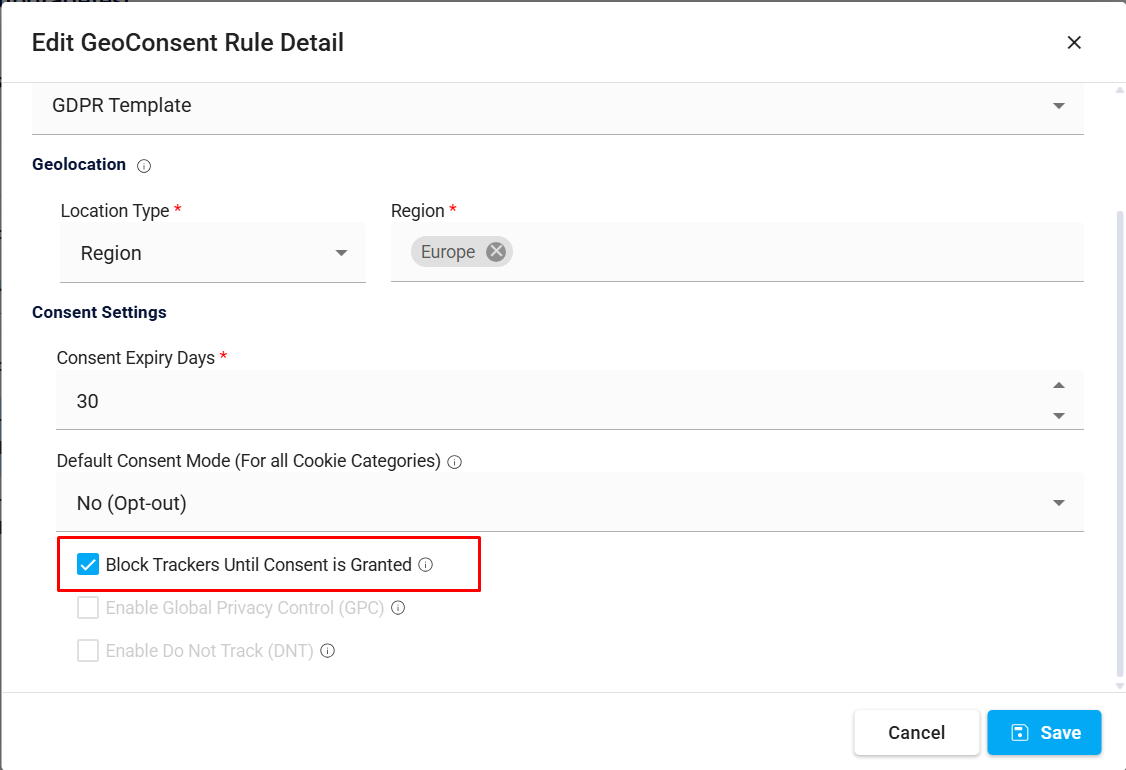
- To choose Basic or Advanced Consent Mode, go to the Banner Configuration tab -> edit the GeoConsent Rule -> "Block Trackers Until Consent is Granted".
Enabled = Basic Consent Mode (Google tags and other trackers are blocked until consent).
Disabled = Advanced Consent Mode (Google tags load before consent and send cookieless signals). This option is available when "Default Consent Mode" is set to "No (Opt-out)" or "Custom".
|
Note: If Mandatly is installed through the Google Tag Manager community template, the banner is loaded by Google Tag Manager itself and therefore starts after any tag that is hardcoded in the page. Automatic blocking cannot hold those tags back. On these websites, move your tags into the Google Tag Manager container and fire them on the "MandatlyDataCategory-{categoryId}" custom event triggers instead. This requires "Manual Blocking Script" to be enabled under Websites -> Edit -> More Settings. Refer to Blocking third-party cookies via GTM. |
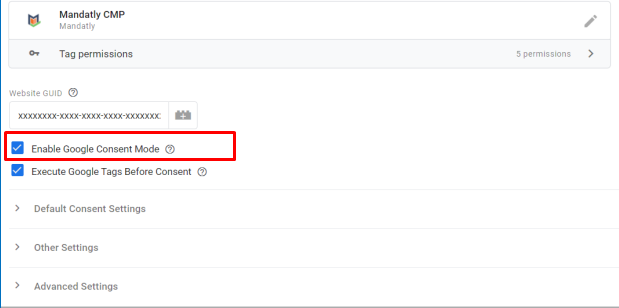
- For implementation via Google Community Template, ensure that the “Enable Google Consent Mode” checkbox is enabled.
- The Website GUID of the website has been entered correctly.

Following are some of the most common issues faced after implementation of GCM v2:
If the consent is not set during the website page load (default consent) or after the visitor interacts with the cookie banner (consent update), re-check the configuration steps at the top of this page. For implementation via Google Community Template, also verify that the "Enable Google Consent Mode" checkbox is enabled in the Mandatly CMP tag.
|
Note: If the banner is configured not to display in the visitor's region, Mandatly sends the consent update automatically on page load, based on the "Default Consent Mode" of that region. No interaction with the banner is needed. |
Mandatly always sends the default consent as soon as your website loads, before any Google tag fires. If the default consent is not set, re-check the configuration steps at the top of this page. For implementation via Google Community Template, also verify that the "Enable Google Consent Mode" checkbox is enabled in the Mandatly CMP tag and that the container version is published.
If the default consent is set after Google tags are fired, it is set late, refer to the steps below to troubleshoot the issue:
This error occurs when other tags are read or fired prior to the firing of the default consent.
- For manual implementation, add the Mandatly script as the first script in the <head> section of every page, above all Google tags. Do not add async or defer to it. The Mandatly script sets the default consent itself, so no separate default consent script is needed.
- For implementation via Google Community Template, ensure that the trigger in Mandatly CMP Tag is set as “Consent Initialization - All Pages”.

|
Note: Do not implement any other tag with the Consent Initialization - All Pages trigger, this helps the implementation of Mandatly CMP as first tag before any other tag. To verify, open the browser console on your website and run MandatlyCookie.Debug(). The report must show wasSetLate: false, and the consent type mapping table must show a banner category against every consent type. If your Google tags are served through Google Tag Gateway (GTG), refer to Google Tag Gateway (GTG) and Consent Mode. |
Relevant Resources: